
IPTV buffering on FireStick can be frustrating, especially when you are watching live sports, movies, or TV channels. A stream may pause, load repeatedly, or suddenly drop in quality even when your internet connection appears to be working normally.
The good news is that several common issues can cause buffering, and many of them can be fixed with a few simple changes. In this guide, we explain how to fix IPTV buffering on FireStick in 2026 and improve your overall streaming experience.
Why Does IPTV Buffer on FireStick?
Before changing your settings, it helps to understand what can cause buffering. The problem may come from your internet connection, Wi-Fi signal, FireStick performance, IPTV app settings, or the streaming source itself.
Common causes include:
- Slow or unstable internet
- Weak Wi-Fi signal
- Too many devices using the same connection
- Outdated IPTV apps
- Too much cached data
- Limited FireStick storage
- High-quality streams using more bandwidth
- Temporary server congestion
Identifying the cause makes it easier to find the right solution.
If you’re experiencing IPTV buffering on FireStick, there are several simple things you can check.
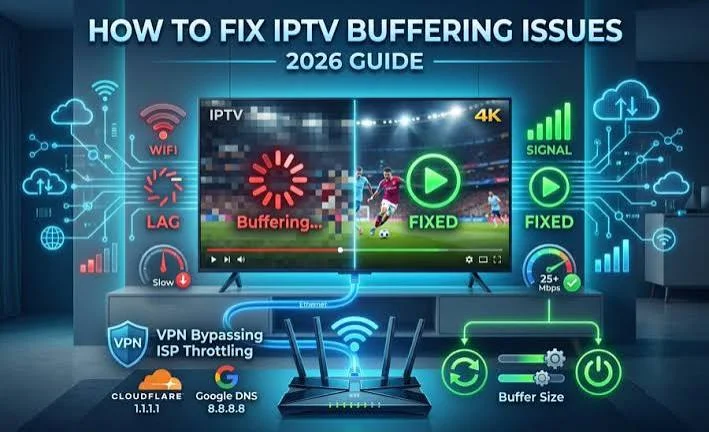
Most IPTV buffering on FireStick problems are related to network speed, Wi-Fi stability, app cache, or device performance.
1. Check Your Internet Connection
Your internet connection is one of the first things to check when experiencing IPTV buffering on FireStick.
Try running a speed test on another device connected to the same network. If the connection is unusually slow or unstable, restart your router and modem.
For live HD and 4K streaming, a stable connection is especially important. Speed alone is not everything; connection stability and latency can also affect playback.
If several people are streaming, gaming, or downloading large files at the same time, your available bandwidth may be reduced.
For additional troubleshooting help, check the official Fire TV support resources.
2. Restart Your FireStick and Router
A simple restart can sometimes solve temporary performance problems.
Disconnect your router from power for around 30 seconds, then reconnect it and wait until the internet connection is restored. After that, restart your FireStick.
This can clear temporary network and device issues without changing your main settings.
3. Improve Your Wi-Fi Signal
If your FireStick is far away from your router, the Wi-Fi signal may be weaker than expected.
Try moving the router closer to your streaming device or reducing physical obstacles between them. Walls, furniture, and other electronic devices can sometimes interfere with wireless performance.
If possible, connect the FireStick through a reliable Ethernet adapter. A wired connection can provide more consistent performance than Wi-Fi.
4. Clear Your IPTV App Cache
Cached data can build up over time and may affect the performance of some applications.
To clear an app’s cache on FireStick, go to:
Settings → Applications → Manage Installed Applications → Select Your IPTV App → Clear Cache
Avoid selecting Clear Data unless you understand what it does, because it may remove saved settings or login information.
After clearing the cache, open the app again and test the stream.
5. Close Apps You Are Not Using
Background applications can use device resources and may affect performance on older or heavily used FireStick devices.
Go through your installed apps and remove applications you no longer need. Keeping your FireStick organized can also free up storage space.
You can also restart the device after closing unnecessary applications and then test your IPTV stream again.
6. Free Up FireStick Storage
Limited storage can affect overall device performance.
Go to:
Settings → My Fire TV → About → Storage
If your device is almost full, uninstall apps that you no longer use.
Keeping enough free storage can help your FireStick run more smoothly, especially when using streaming applications.
7. Try a Lower Streaming Quality
High-resolution streams require more bandwidth and can be more demanding on your internet connection and device.
If a 4K stream keeps buffering, try an HD stream and compare the results.
If HD plays smoothly while 4K constantly buffers, the issue may be related to available bandwidth, Wi-Fi stability, device performance, or the streaming source.
8. Update Your IPTV App
Using an outdated IPTV application can sometimes cause compatibility or playback problems.
Check whether your IPTV player has a newer version available. An updated application may include performance improvements, bug fixes, and better compatibility with newer FireStick software.
Also make sure your FireStick itself is running an up-to-date version of its system software.
9. Test Another IPTV Player
Different IPTV players can behave differently on the same device.
If one application continues to buffer, you can test another compatible IPTV player. Popular options include applications that support M3U playlists, Xtream API credentials, and electronic program guides (EPG).
For more information about IPTV player options, see our guide to Best IPTV Apps for FireStick.
10. Check Whether the Problem Affects One Channel or Everything
This is an important troubleshooting step.
If only one channel or a few streams buffer while everything else plays normally, the problem may not be your FireStick or internet connection.
Try several different channels or streams. If most of them work correctly, the issue could be related to the specific streaming source.
If every channel buffers, focus first on your internet connection, Wi-Fi, FireStick performance, and IPTV app.
11. Reduce Network Congestion
Other devices connected to your network can consume significant bandwidth.
Downloads, cloud backups, online gaming, video calls, and multiple HD streams can all increase network usage.
If possible, pause large downloads and reduce unnecessary streaming while watching live TV.
You can also test your FireStick when fewer devices are using the network to see whether performance improves.
12. Use a Reliable Streaming Setup
A stable IPTV experience depends on more than the IPTV app itself.
Your setup includes:
- Internet connection
- Router and Wi-Fi quality
- FireStick performance
- IPTV player
- Streaming source
- Video quality
- Network congestion
If these elements work together properly, you are more likely to get smooth playback.
For users who are still setting up IPTV on FireStick, our How to Install IPTV on FireStick in 2026 guide explains the basic setup process.
Can a VPN Fix IPTV Buffering?
A VPN does not automatically fix buffering.
In some situations, a VPN can change the network route between your device and a streaming service. However, it can also reduce connection speed depending on the VPN server and your location.
If your IPTV connection works normally without a VPN, test your setup before assuming that a VPN is necessary.
Always use streaming services and content that are legally available in your region.
Best Internet Setup for FireStick Streaming
For a smoother experience, use a stable broadband connection and keep your FireStick as close as reasonably possible to your router when using Wi-Fi.
If your home network supports it, Ethernet can be a useful option for reducing wireless interference.
For 4K streaming, having additional bandwidth available is helpful because other devices may also be using your connection at the same time.
Quick IPTV Buffering Checklist
If your IPTV keeps buffering on FireStick, work through this checklist:
- Restart your router.
- Restart your FireStick.
- Test your internet connection.
- Improve your Wi-Fi signal.
- Clear the IPTV app cache.
- Free up FireStick storage.
- Close or uninstall unnecessary apps.
- Try HD instead of 4K.
- Update your IPTV player.
- Test another compatible IPTV player.
- Check whether the issue affects one channel or all channels.
- Test the connection when fewer devices are online.
These steps can help identify whether the problem is coming from your device, network, application, or streaming source.
Final Thoughts
If you are dealing with IPTV buffering on FireStick, start with the simplest solutions first. Restart your router and FireStick, check your internet connection, improve your Wi-Fi signal, clear the app cache, and make sure your device and IPTV player are updated.
If buffering continues, test a lower video quality and compare different channels or streams. This can help determine whether the issue is related to your local setup or a particular streaming source.
A reliable internet connection, properly configured FireStick, compatible IPTV player, and legally available streaming content can all contribute to a better viewing experience in 2026.
By following these steps, you can reduce IPTV buffering on FireStick and improve your streaming experience.
One Response